1. Development Environment Setup
This chapter will guide you through setting up the Pico development environment to prepare for compilation and development.
Note
If you only want to use the pre-compiled firmware, you don’t need to set up a development environment. Please refer to 1. Quick Start Guide
System Requirements
This tutorial supports the following Linux systems:
Ubuntu 20.04 / 22.04 or newer versions
Raspberry Pi OS 64-bit Bookworm version (recommended October 2024 or later)
Attention
Windows and macOS users please refer to the Pico Official Documentation to configure the development environment.
Prerequisites
Before starting, please ensure:
✅ System can access apt package sources normally
✅ System can access GitHub normally (for downloading SDK and source code)
✅ Stable network connection (installation requires downloading approximately 500MB of files)
Ubuntu System Setup
Step 1: Update System and Install Dependencies
Open terminal and execute the following commands:
sudo apt update
sudo apt install cmake gcc-arm-none-eabi libnewlib-arm-none-eabi libstdc++-arm-none-eabi-newlib
Tip
If prompted for insufficient permissions during installation, please ensure your account has sudo privileges.
Step 2: Install Pico SDK
Use the official automatic installation script:
cd ~
wget https://raw.githubusercontent.com/raspberrypi/pico-setup/refs/heads/master/pico_setup.sh
chmod a+x pico_setup.sh
./pico_setup.sh
Note
The installation script will automatically complete the following operations:
Download Pico SDK
Download necessary toolchains
Configure environment variables
Compile example programs
The entire process takes approximately 10-20 minutes, please be patient.
Step 3: Verify Environment Variables
Check if the Pico SDK path has been set correctly:
echo $PICO_SDK_PATH
If the output is empty or does not show a path, manually set the environment variable:
echo 'export PICO_SDK_PATH=~/pico/pico-sdk' >> ~/.bashrc
source ~/.bashrc
Step 4: Download Project Source Code
Clone the complete source code of this project (including submodules):
cd ~
git clone --recursive https://github.com/lafvintech/LAFVIN-PICO-Development-Kit.git
Attention
Be sure to add the --recursive parameter, which will download FreeRTOS and LVGL submodules at the same time.
Verify Installation
Check if all tools have been installed correctly:
# Check CMake version (should be >= 3.13)
cmake --version

# Check ARM GCC toolchain
arm-none-eabi-gcc --version

# Check Pico SDK environment variable
echo $PICO_SDK_PATH
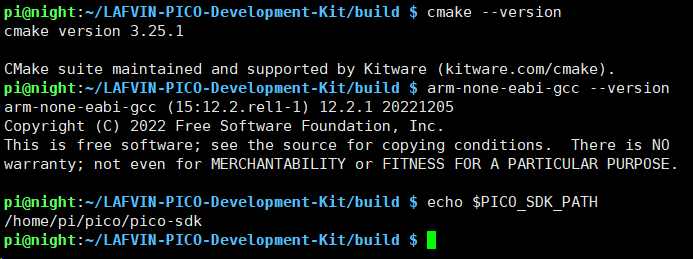
If all commands execute correctly and display version information, the environment setup is successful!
Common Issues
- Problem: apt install fails
Solution: Check network connection, try changing software sources
- Problem: pico_setup.sh download fails
Solution: Check if GitHub access is normal, may need to configure proxy
- Problem: git clone is very slow
Solution: Can use domestic mirrors or proxy acceleration
- Problem: Cannot find PICO_SDK_PATH during compilation
Solution: Ensure
source ~/.bashrchas been executed or reopen terminal
- Problem: Cannot find arm-none-eabi-gcc
Solution: Reinstall with sudo apt install gcc-arm-none-eabi
- Problem: Submodules not initialized
Solution: git submodule update –init –recursive
Next Steps
After completing the environment setup, you can:
Understand project code structure → 2. Code Structure Overview
Start compiling the project → 3. Compile Project